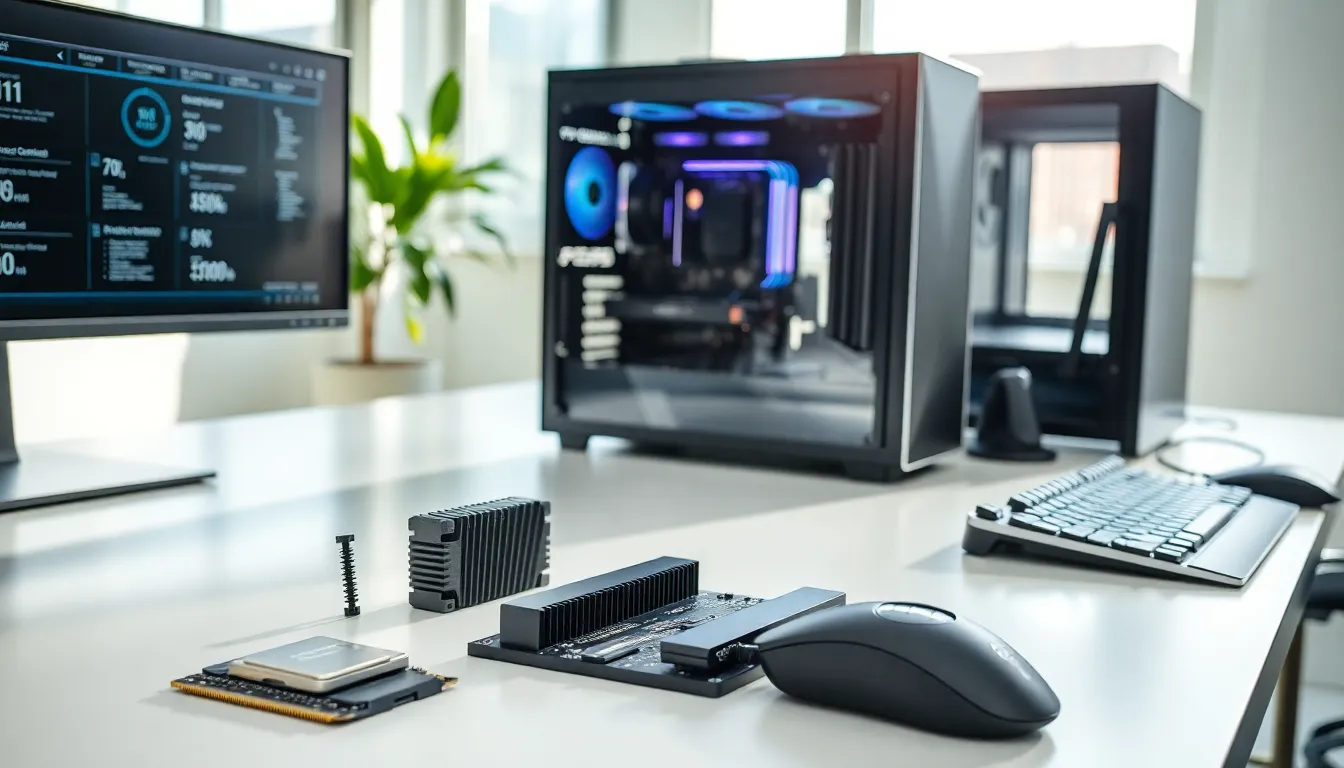
Hardware forms the backbone of every computer, smartphone, and digital device. Without physical components, software has nothing to run on. This guide breaks down hardware into clear categories, explains how each part works, and offers practical advice for selecting and maintaining these essential pieces. Whether someone is building a custom PC or simply wants to understand what’s inside their laptop, this article covers the fundamentals they need to know.
Table of Contents
ToggleKey Takeaways
- Hardware refers to the physical components of a computer—like CPUs, RAM, and storage drives—that work together to execute software instructions.
- Match your hardware choices to your primary use case: gaming requires a powerful GPU, office work needs reliable RAM, and content creation demands large storage.
- SSDs offer significantly faster performance than traditional HDDs, making them ideal for operating systems and frequently used programs.
- Regular maintenance—including dust removal, temperature monitoring, and firmware updates—extends hardware lifespan and prevents overheating damage.
- Upgrading components like RAM, storage, or your GPU is often more cost-effective than replacing your entire system.
- Always check hardware compatibility before purchasing, as CPUs, RAM generations, and GPUs must match your motherboard and power supply specifications.
What Is Hardware?
Hardware refers to the physical, tangible parts of a computing device. It includes everything a person can touch, from the keyboard under their fingers to the processor hidden inside the case.
The term hardware contrasts directly with software. Software consists of programs and operating systems that tell hardware what to do. Hardware executes those instructions. Think of it this way: software is the recipe, and hardware is the kitchen equipment that actually cooks the meal.
Computer hardware falls into several broad categories:
- Processing hardware (CPUs, GPUs) handles calculations and data processing
- Storage hardware (hard drives, SSDs) saves files and programs
- Memory hardware (RAM) provides temporary workspace for active tasks
- Input hardware (keyboards, mice) lets users send commands
- Output hardware (monitors, printers) displays or produces results
Every piece of hardware serves a specific function. When these components work together, they create a functioning computer system. Understanding hardware helps users make smarter purchasing decisions, troubleshoot problems, and extend the life of their devices.
Essential Hardware Components
A computer system relies on multiple hardware components working in sync. Some sit inside the case where users rarely see them. Others connect externally and serve as the primary interface between humans and machines.
Internal Components
The Central Processing Unit (CPU) acts as the brain of any computer. It processes instructions from software and coordinates activities across all other hardware. Modern CPUs from Intel and AMD contain multiple cores, allowing them to handle several tasks simultaneously.
Random Access Memory (RAM) provides short-term memory for active applications. More RAM allows a computer to run more programs at once without slowing down. Most modern systems ship with 8GB to 32GB of RAM.
The motherboard connects every piece of internal hardware. This large circuit board contains slots for the CPU, RAM, and expansion cards. It also houses the chipset that manages data flow between components.
Storage drives come in two main types. Traditional Hard Disk Drives (HDDs) use spinning platters to store data affordably. Solid State Drives (SSDs) use flash memory chips and offer much faster read/write speeds. Many users now prefer SSDs for their operating system and frequently used programs.
The Graphics Processing Unit (GPU) handles visual rendering. Gamers and video editors need powerful dedicated GPUs from NVIDIA or AMD. Casual users can often rely on integrated graphics built into their CPU.
A Power Supply Unit (PSU) converts electricity from the wall outlet into usable power for all internal hardware. Choosing the right wattage matters, underpowered systems crash, while overpowered ones waste energy.
External Devices and Peripherals
External hardware connects to the computer through USB, HDMI, Bluetooth, or other interfaces.
Monitors display visual output. Screen size, resolution, and refresh rate all affect the viewing experience. A 1080p monitor works fine for office tasks, while 4K displays suit creative professionals.
Keyboards and mice remain the primary input devices for most desktop users. Mechanical keyboards offer tactile feedback and durability. Wireless mice eliminate cable clutter.
Printers and scanners handle physical documents. Laser printers excel at high-volume text printing. Inkjet printers produce better color photos.
Other common peripherals include webcams, external hard drives, speakers, and headsets. Each piece of external hardware expands what a computer system can do.
How to Choose the Right Hardware
Selecting hardware requires matching components to intended use. A video editor needs different specs than someone who only browses the web.
Define the primary use case first. Gaming demands a powerful GPU and fast CPU. Office work prioritizes reliability and sufficient RAM. Content creation needs large storage and color-accurate displays.
Set a realistic budget. Hardware prices range from budget-friendly to premium. The good news? Mid-range components often deliver 80% of high-end performance at half the cost.
Check compatibility before buying. CPUs only fit specific motherboard sockets. RAM modules come in different generations (DDR4, DDR5). GPUs require adequate power supply wattage. Building a system means ensuring every piece of hardware works together.
Read reviews from trusted sources. Benchmark tests reveal real-world performance. User reviews highlight reliability issues that specs don’t show.
Consider future needs. Buying slightly more powerful hardware now can delay the next upgrade. Choosing a motherboard with extra RAM slots or PCIe lanes provides room to grow.
For laptops and pre-built systems, similar principles apply. Compare specifications across models. Pay attention to build quality and warranty terms. Sometimes spending a bit more upfront saves money on repairs later.
Maintaining and Upgrading Hardware
Proper maintenance extends hardware lifespan and keeps systems running smoothly.
Clean components regularly. Dust accumulates inside cases and clogs cooling fans. Compressed air removes debris from vents and heatsinks. Clean hardware runs cooler and lasts longer.
Monitor temperatures. Overheating damages CPUs and GPUs over time. Free software like HWMonitor tracks component temperatures. If numbers run high, improve airflow or replace thermal paste.
Update firmware when available. Motherboard BIOS updates and SSD firmware patches fix bugs and improve performance. Check manufacturer websites periodically.
Back up data before it’s too late. All storage hardware eventually fails. External drives or cloud services protect important files from unexpected hardware death.
Upgrading hardware offers a cost-effective alternative to buying a new system. Common upgrades include:
- Adding more RAM for better multitasking
- Swapping an HDD for an SSD to speed up boot times
- Installing a new GPU for improved gaming performance
- Replacing thermal paste on older CPUs to reduce temperatures
Not every upgrade makes sense for every system. Older motherboards may not support newer hardware. Sometimes the smartest move is starting fresh with a new build.