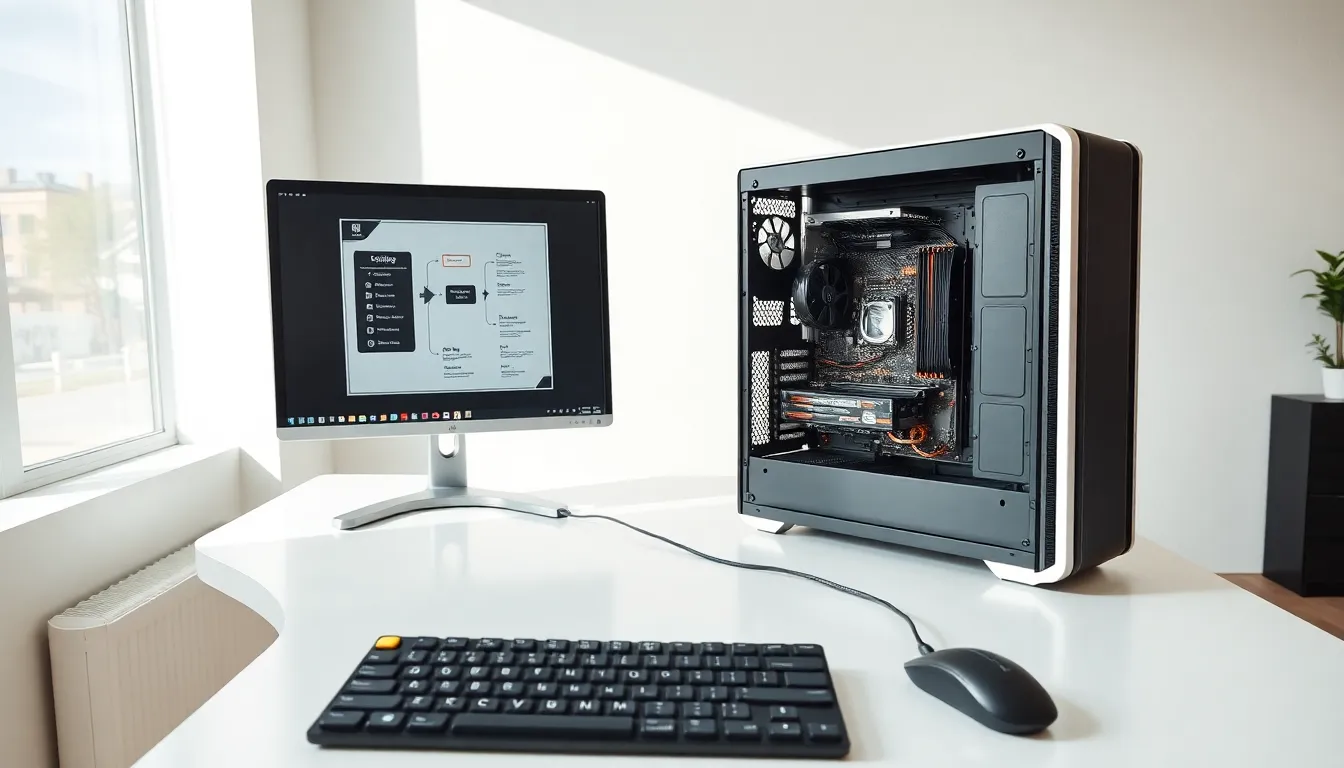
Hardware for beginners doesn’t have to be confusing. Every computer relies on physical components that work together to run programs, store files, and display information. Understanding these parts helps users make smarter buying decisions and troubleshoot basic problems.
This guide breaks down the essential hardware components in plain language. Readers will learn what each part does, how to choose hardware that fits their needs, and how to fix common issues without calling tech support. Whether someone is buying their first computer or simply wants to understand what’s inside the machine they already own, this article covers the fundamentals.
Table of Contents
ToggleKey Takeaways
- Hardware for beginners includes understanding internal components like the CPU, RAM, and storage, which determine your computer’s speed and capabilities.
- The CPU acts as the computer’s brain, while RAM provides temporary memory for active programs and storage (HDD or SSD) holds files permanently.
- Match your hardware choices to your actual needs—basic tasks require modest specs, while gaming and creative work demand more powerful components.
- Upgrading specific parts like RAM or swapping an HDD for an SSD can dramatically improve performance without buying a new computer.
- Common hardware issues like slow performance, overheating, and display problems often have simple fixes like cleaning dust, checking cables, or freeing up storage.
- Before attempting internal repairs, always unplug your computer and ground yourself to prevent static damage to sensitive components.
What Is Computer Hardware?
Computer hardware refers to the physical parts of a computer system. These are the components a person can touch and see, the monitor, keyboard, mouse, and everything inside the case. Hardware differs from software, which consists of programs and operating systems that run on the machine.
Think of hardware as the body and software as the mind. The hardware provides the structure and processing power. The software tells that hardware what to do. Without hardware, software has nothing to run on. Without software, hardware sits idle.
Hardware falls into two main categories: internal and external. Internal hardware includes the motherboard, processor, memory, and storage drives. These parts live inside the computer case. External hardware, also called peripherals, includes monitors, keyboards, mice, printers, and speakers. These connect to the computer from outside.
For beginners learning about hardware, the internal components matter most. They determine how fast a computer runs, how much data it can store, and what tasks it can handle. A computer with better internal hardware will perform more demanding tasks like video editing or gaming. A computer with basic hardware works fine for web browsing and document editing.
Understanding hardware also helps with upgrades. Many computers allow users to add more memory or swap out storage drives. This knowledge saves money because upgrading specific parts often costs less than buying a new computer.
Essential Hardware Components Every Beginner Should Know
Several hardware components form the foundation of every computer. Each part serves a specific function. Together, they create a working system.
The motherboard acts as the main circuit board. It connects all other components and allows them to communicate. Every piece of hardware plugs into or connects to the motherboard in some way.
The power supply unit (PSU) converts electricity from the wall outlet into usable power for the computer. It distributes that power to the motherboard and other components. A reliable PSU prevents crashes and protects hardware from electrical damage.
The graphics card (GPU) handles visual output. It processes images, videos, and everything displayed on the monitor. Basic computers use integrated graphics built into the CPU. Gaming computers and workstations use dedicated graphics cards for better performance.
The Central Processing Unit (CPU)
The CPU serves as the brain of the computer. It executes instructions from programs and processes data. Every action on a computer, opening a browser, typing a document, playing music, requires CPU processing.
CPU speed is measured in gigahertz (GHz). Higher numbers generally mean faster processing. Modern CPUs also have multiple cores, which allow them to handle several tasks simultaneously. A quad-core processor can work on four tasks at once.
Intel and AMD manufacture most consumer CPUs. Intel’s Core series (i3, i5, i7, i9) and AMD’s Ryzen series are common choices. Beginners typically don’t need the most powerful options. A mid-range CPU handles everyday tasks without issues.
Memory and Storage Explained
Memory and storage often confuse beginners because both involve holding data. But, they serve different purposes.
RAM (Random Access Memory) provides temporary, fast storage for active programs. When someone opens a web browser, the computer loads it into RAM. More RAM allows more programs to run simultaneously without slowing down. Most computers benefit from 8GB to 16GB of RAM for general use.
Storage holds files permanently. Even when the computer shuts off, stored data remains. Two main types exist: hard disk drives (HDDs) and solid-state drives (SSDs). HDDs use spinning disks to read and write data. They cost less but run slower. SSDs use flash memory with no moving parts. They cost more but offer much faster speeds.
Many beginners start with hardware that includes an SSD for the operating system and programs, plus an HDD for storing large files like photos and videos. This combination balances speed and storage capacity.
How to Choose the Right Hardware for Your Needs
Choosing hardware starts with understanding how the computer will be used. Different tasks require different levels of performance. Buying hardware that matches actual needs saves money and prevents frustration.
For basic tasks like web browsing, email, and document editing, modest hardware works fine. A budget CPU, 8GB of RAM, and a 256GB SSD handle these tasks smoothly. Users don’t need expensive components for everyday activities.
For gaming, hardware requirements increase significantly. Games demand powerful graphics cards, faster CPUs, and more RAM. A dedicated GPU makes the biggest difference in gaming performance. Gamers should also consider a larger SSD since modern games require substantial storage space.
For creative work like video editing or 3D rendering, both CPU and GPU matter. These tasks benefit from more cores and higher clock speeds. 16GB or 32GB of RAM prevents slowdowns during heavy projects. Fast SSD storage speeds up file transfers and project loading times.
Beginners should research minimum and recommended specifications for the software they plan to use. These specs list the hardware requirements. Meeting recommended specs ensures smooth performance.
Budget also plays a role in hardware decisions. Setting a realistic budget prevents overspending on features that won’t be used. It also helps prioritize which components deserve more investment. For most users, the CPU and storage affect daily experience most noticeably.
Common Hardware Issues and Simple Fixes
Hardware problems happen to every computer eventually. Many issues have simple solutions that don’t require professional help.
Slow performance often results from insufficient RAM or a full storage drive. Closing unused programs frees up RAM. Deleting unnecessary files or adding more storage solves space issues. Upgrading from an HDD to an SSD dramatically improves speed on older computers.
Overheating causes shutdowns and performance throttling. Dust buildup blocks airflow and traps heat. Cleaning vents and fans with compressed air improves cooling. Ensuring the computer has adequate ventilation also helps. Laptops benefit from cooling pads that improve airflow.
A computer that won’t turn on might have a power supply problem. First, check that cables are connected securely. Test the outlet with another device. If the computer still won’t power on, the PSU may need replacement.
Display issues sometimes stem from loose cable connections. Checking the cable between the monitor and computer often solves the problem. If the display looks distorted or shows artifacts, the graphics card might be failing or overheating.
Strange noises usually indicate hardware problems. Clicking sounds from a hard drive suggest imminent failure, back up data immediately. Grinding or whining from fans means they need cleaning or replacement.
Before attempting any internal repairs, beginners should unplug the computer and ground themselves to prevent static damage. Many hardware fixes require only a screwdriver and patience. Online tutorials provide step-by-step guidance for specific repairs.