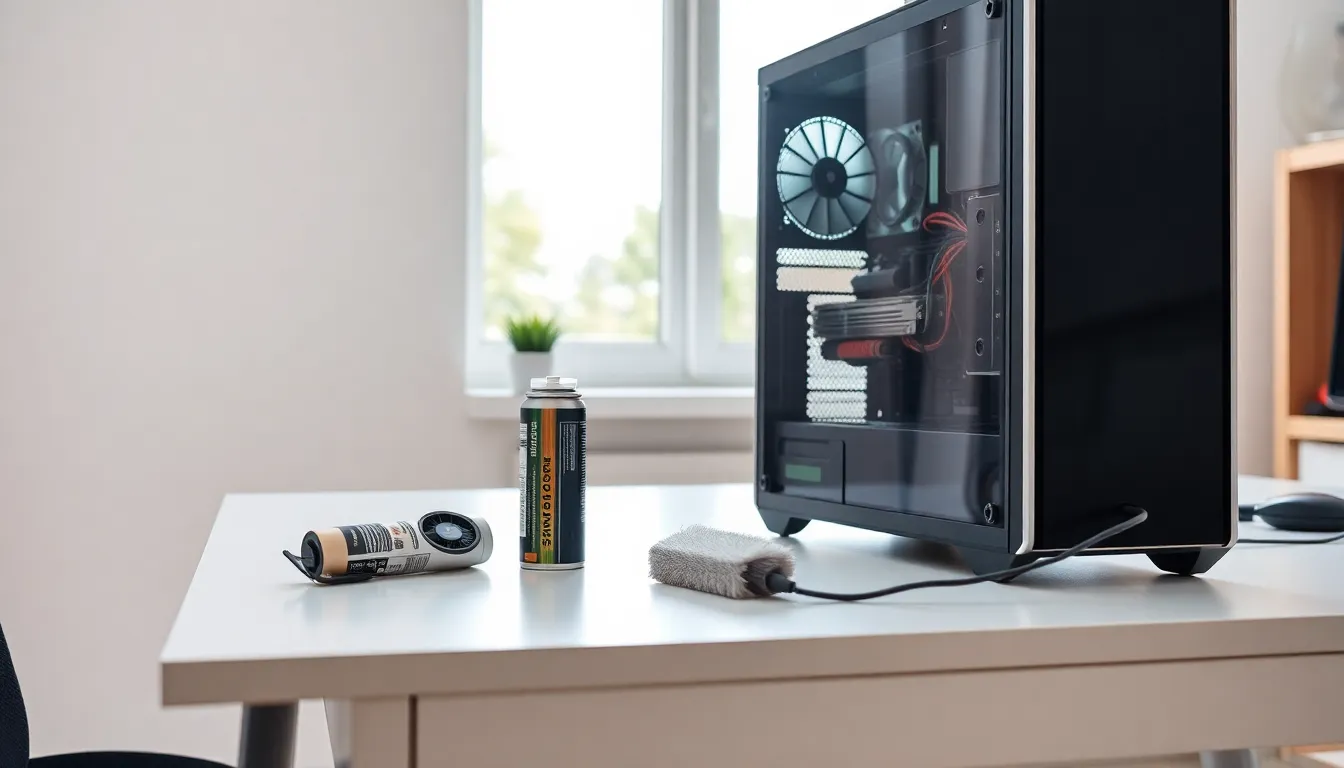
Good hardware tips can save users hundreds of dollars and years of frustration. Whether someone owns a gaming PC, a workstation, or a basic home computer, the same principles apply. Hardware doesn’t fail randomly, it fails because of heat, dust, power surges, and neglect. The good news? Most problems are preventable with basic maintenance and smart habits.
This guide covers practical hardware tips that anyone can follow. From cleaning techniques to upgrade timing, these strategies help computers run faster and last longer. No technical degree required.
Table of Contents
ToggleKey Takeaways
- Clean your computer every three to six months with compressed air to prevent dust buildup, overheating, and premature component failure.
- Optimize cooling by maintaining proper airflow direction, managing cables, and replacing thermal paste every two to three years.
- Update GPU drivers, BIOS, and storage firmware regularly to fix bugs, patch security vulnerabilities, and gain free performance improvements.
- Protect your hardware with surge protectors or a UPS to prevent instant damage from power surges and voltage fluctuations.
- Prioritize upgrades by impact per dollar—SSDs offer the biggest performance boost, followed by RAM for multitaskers and GPUs for gamers.
- Monitor CPU temperatures to stay below 80°C under load, as proper cooling can extend hardware life to five to seven years.
Keep Your Hardware Clean and Dust-Free
Dust is the silent killer of computer hardware. It builds up inside cases, clogs fans, and coats components in an insulating blanket that traps heat. Over time, this leads to overheating, throttled performance, and premature component failure.
One of the most important hardware tips is simple: clean the system every three to six months. Here’s how to do it right:
- Power down completely and unplug the computer before opening the case.
- Use compressed air to blow dust from fans, heatsinks, and vents. Hold fans in place while cleaning, spinning them with air can damage bearings.
- Avoid vacuums near sensitive components. Static discharge from vacuums can fry circuits.
- Clean intake filters if the case has them. Many users forget these exist.
Laptop owners face a tougher challenge. Dust accumulates inside but opening the chassis voids some warranties. At minimum, they should blow compressed air through vents and keep laptops elevated on stands for better airflow.
A clean system runs cooler, quieter, and faster. It’s the foundation of all other hardware tips in this guide.
Optimize Cooling and Airflow
Heat destroys electronics. CPUs and GPUs generate significant thermal output during operation, and without proper cooling, they throttle performance or sustain permanent damage.
Effective cooling starts with case airflow. Air should flow in one direction, typically front-to-back or bottom-to-top. Mixing fan directions creates turbulence and dead spots where heat accumulates.
These hardware tips improve cooling performance:
- Check fan orientation. Intake fans should face forward or downward. Exhaust fans should face rearward or upward.
- Maintain positive pressure. Slightly more intake than exhaust reduces dust buildup inside the case.
- Manage cables. Messy cables block airflow. Bundle them together and route them behind the motherboard tray.
- Replace thermal paste on CPUs every two to three years. Old paste dries out and loses conductivity.
- Consider aftermarket coolers. Stock coolers work, but tower coolers or AIO liquid coolers handle heat better under load.
Monitoring software like HWMonitor or Core Temp helps users track temperatures. CPUs should stay below 80°C under load. GPUs can tolerate slightly higher temps, but anything above 85°C deserves attention.
Good cooling extends hardware life significantly. A well-cooled system can last five to seven years without major issues.
Update Drivers and Firmware Regularly
Outdated drivers cause crashes, security holes, and performance problems. Manufacturers release updates that fix bugs, patch vulnerabilities, and sometimes improve speed.
GPU drivers matter most for gamers and creative professionals. NVIDIA and AMD release updates monthly, often with optimizations for new games. Skipping these updates means missing free performance gains.
These hardware tips help users stay current:
- Update GPU drivers through manufacturer software (GeForce Experience or AMD Adrenalin).
- Check motherboard BIOS every six months. BIOS updates improve stability and add support for new hardware.
- Update storage firmware. SSD manufacturers release firmware that improves performance and reliability.
- Use Windows Update for basic drivers, but get specialized hardware drivers from manufacturers directly.
A word of caution: don’t update BIOS during storms or when power is unstable. A failed BIOS update can brick a motherboard. Always follow manufacturer instructions exactly.
Driver maintenance takes minutes but prevents hours of troubleshooting. It’s one of those hardware tips that pays dividends over time.
Practice Safe Power Management
Power problems kill hardware instantly. A single surge can destroy a power supply, motherboard, or storage drive. Voltage fluctuations cause data corruption and reduce component lifespan.
Every computer needs surge protection at minimum. A basic surge protector costs under $30 and prevents most electrical damage. For critical systems, an uninterruptible power supply (UPS) provides battery backup during outages and conditions incoming power.
These hardware tips protect against power issues:
- Never plug computers directly into wall outlets. Always use surge protection.
- Replace surge protectors every three to five years. Their protection degrades after absorbing surges.
- Size UPS units appropriately. A 600VA unit handles basic systems. Gaming rigs need 1000VA or more.
- Enable proper shutdown procedures. Hard shutdowns stress components and risk data loss.
- Unplug during electrical storms. Surge protectors can’t stop direct lightning strikes.
Power supply quality matters too. Cheap PSUs deliver unstable voltage that stresses components. Investing in a reputable 80+ rated power supply protects the entire system.
These hardware tips seem paranoid until a power event destroys expensive components. Prevention costs far less than replacement.
Know When to Upgrade Components
Hardware doesn’t last forever. Knowing when to upgrade, and what to upgrade, saves money and prevents frustration from aging systems.
Some signs indicate upgrade time:
- Boot times exceed 60 seconds. An SSD upgrade often fixes this for under $50.
- RAM usage stays above 80% during normal tasks. Adding more RAM improves responsiveness.
- Games stutter even though lowered settings. The GPU may need replacement.
- The system can’t run required software. Eventually, old hardware becomes incompatible with new applications.
Smart hardware tips for upgrades include prioritizing impact per dollar. An SSD provides the biggest performance jump for most users. RAM upgrades help multitaskers. GPU upgrades benefit gamers and video editors.
Not everything needs upgrading. A five-year-old CPU often handles modern workloads fine. Upgrading CPUs usually requires new motherboards and RAM, making it expensive.
Before upgrading, users should check compatibility. PCPartPicker and manufacturer websites help verify that new components work with existing hardware.
Sometimes the best hardware tip is knowing when a system has reached its limit. Building or buying new makes more sense than sinking money into an aging platform.